Getting started
Import your members from a spreadsheet
Bring your whole member list across in one go from Excel or Google Sheets.
Step 1: Save your list as a CSV file
Open your member list in Excel and choose File, Save As, then CSV. In Google Sheets, choose File, Download, Comma-separated values. One member per row, with a heading row at the top (first name, last name, email, mobile, membership type, member number, and so on).
Step 2: Open the import page
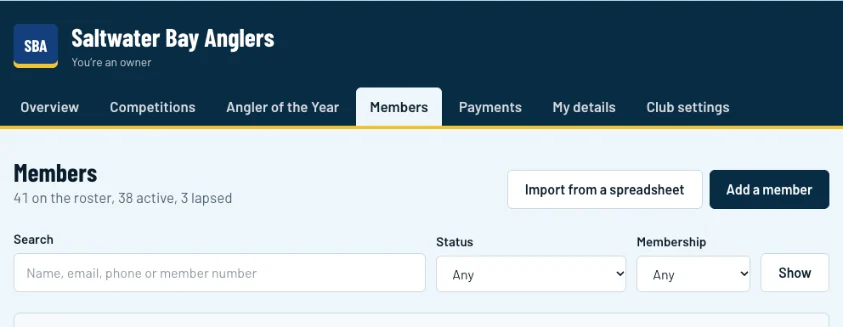
Click Members, then Import from a spreadsheet (1). To add one person at a time, use Add a member (2).
Swipe sideways to see the whole screen.Full size Step 3: Choose your file and check the columns
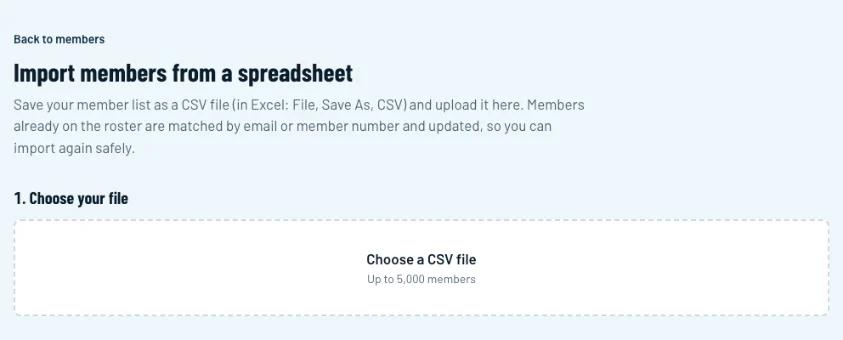
Click Choose a CSV file (1). Club HQ shows each column from your file with an example, and what it will import it as. Change any that are wrong, or choose Skip this column.
Swipe sideways to see the whole screen.Full size Step 4: Review and import
Check the rows, then click Import members. If a row has a problem, Club HQ tells you which one and why. Fix it in your spreadsheet, save, and choose the file again. Members already on the roster are matched by email or member number and updated, so importing twice won't create duplicates.